

◎ 자동화 스크립트
- 아래 내용을 Notepad에 붙여넣기하고 인코딩을 UTF-8 with BOM으로 변경하고 저장합니다.
| # [1. 인코딩 및 콘솔 설정] $OutputEncoding = [System.Text.Encoding]::UTF8 [Console]::OutputEncoding = [System.Text.Encoding]::UTF8 # [2. 즉시 관리자 권한 확인 및 상승] if (-not ([Security.Principal.WindowsPrincipal][Security.Principal.WindowsIdentity]::GetCurrent()).IsInRole([Security.Principal.WindowsBuiltInRole]::Administrator)) { Write-Host "`n[권한] 관리자 권한이 필요합니다. 승인 팝업을 확인해주세요..." -ForegroundColor Yellow try { Start-Process powershell.exe "-NoProfile -ExecutionPolicy Bypass -File `"$PSCommandPath`"" -Verb RunAs } catch { Write-Host "`n[오류] 권한 승격에 실패했습니다." -ForegroundColor Red Read-Host "엔터를 누르면 종료합니다." } exit } # --- 전역 설정 및 경로 --- $configPath = "C:\ProgramData\ssh\sshd_config" $fwSecureName = "OpenSSH-Server-In-TCP-Secure" $adminKeyPath = "C:\ProgramData\ssh\administrators_authorized_keys" # [함수: 서비스/시스템 재시작 선택] function Invoke-ApplyChanges { Write-Host "`n========================================" -ForegroundColor Magenta Write-Host "설정 변경을 적용하려면 서비스를 재시작해야 합니다." -ForegroundColor Yellow Write-Host " 1. SSH 서비스만 재시작 (즉시 반영)" Write-Host " 2. 시스템 전체 재부팅 (권장)" Write-Host " 3. 나중에 적용 (메뉴로 돌아가기)" $ans = Read-Host "선택" if ($ans -eq "1") { Restart-Service sshd -Force Write-Host "SSH 서비스가 성공적으로 재시작되었습니다." -ForegroundColor Green Start-Sleep -Seconds 1 } elseif ($ans -eq "2") { Write-Host "잠시 후 시스템이 재부팅됩니다..." -ForegroundColor Cyan Read-Host "엔터(Enter)를 누르면 즉시 재부팅합니다" Restart-Computer -Force } } # [함수: 현재 방화벽 허용 IP 가져오기] function Get-AllowedIPs { $rule = Get-NetFirewallRule -Name $fwSecureName -ErrorAction SilentlyContinue if ($rule) { if ($rule.Enabled -eq 'True') { $address = (Get-NetFirewallAddressFilter -AssociatedNetFirewallRule $rule).RemoteAddress return $address } else { return "보안 규칙 비활성화됨" } } return "제한 없음 (모두 허용 중)" } # [함수: 등록된 공개키 정보 가져오기] function Get-SSHKeyStatus { if (Test-Path $adminKeyPath) { $keys = Get-Content $adminKeyPath | Where-Object { $_.Trim() -ne "" } if ($keys) { return "등록됨 ($($keys.Count)개)" } return "파일은 있으나 내용 없음" } return "미등록 (키 파일 없음)" } # [함수: sshd_config 정밀 진단] function Get-SSHDiagnosis { if (-not (Test-Path $configPath)) { return $null } $config = Get-Content $configPath $report = @() $portLine = $config | Where-Object { $_ -match "^Port\s+(\d+)" } if ($null -eq $portLine) { $report += @{ Item="접속 포트"; Value="22 (기본값)"; Status="Warning" } } else { $portLine -match "^Port\s+(\d+)" | Out-Null $report += @{ Item="접속 포트"; Value="$($Matches[1]) (변경됨)"; Status="Safe" } } if ($config -match "^[^#]*PasswordAuthentication\s+yes") { $report += @{ Item="비밀번호 인증"; Value="허용됨 (위험)"; Status="Danger" } } else { $report += @{ Item="비밀번호 인증"; Value="차단됨 (안전)"; Status="Safe" } } return $report } # [함수: 대시보드 출력] function Show-MainDashboard { Clear-Host $svc = Get-Service sshd -ErrorAction SilentlyContinue $allowedIP = Get-AllowedIPs $keyStatus = Get-SSHKeyStatus Write-Host "=================================================" -ForegroundColor White Write-Host " OpenSSH 서버 보안 진단 및 관리 (V3.7) " -ForegroundColor Cyan Write-Host "=================================================" if ($svc) { $svcStatus = $svc.Status $startType = $svc.StartType $svcCol = "Red"; if ($svcStatus -eq 'Running') { $svcCol = "Green" } Write-Host " ● 서비스 상태 : " -NoNewline; Write-Host "$svcStatus ($startType)" -ForegroundColor $svcCol } else { Write-Host " ● 서비스 상태 : " -NoNewline; Write-Host "미설치" -ForegroundColor Red } Write-Host " ● 허용된 IP : " -NoNewline; Write-Host "$allowedIP" -ForegroundColor Yellow $keyCol = "Gray"; if ($keyStatus -like "*등록됨*") { $keyCol = "Green" } Write-Host " ● 공개키 등록 : " -NoNewline; Write-Host "$keyStatus" -ForegroundColor $keyCol $issues = Get-SSHDiagnosis if ($issues) { Write-Host "" foreach ($issue in $issues) { $col = "White" if ($issue.Status -eq "Danger") { $col = "Magenta" } elseif ($issue.Status -eq "Warning") { $col = "Yellow" } elseif ($issue.Status -eq "Safe") { $col = "Green" } Write-Host " [$($issue.Status)] $($issue.Item): $($issue.Value)" -ForegroundColor $col } } Write-Host "=================================================" } # [함수: 공개키 관리 메뉴] function Manage-SSHKeys { while ($true) { Clear-Host Write-Host "=========================================" -ForegroundColor Cyan Write-Host " 공개키(SSH Key) 관리 시스템 " -ForegroundColor Cyan Write-Host "=========================================" Write-Host " 1. 새로운 SSH 키 쌍 생성 (ED25519)" Write-Host " 2. 기존 공개키(.pub) 등록 (기본경로 지원)" Write-Host " 3. 서버 등록 키 전체 삭제 (초기화)" Write-Host " 4. 현재 등록된 공개키 목록 확인" Write-Host " 0. 돌아가기" Write-Host "=========================================" $kSel = Read-Host "작업 선택" $defaultKeyName = "id_ed25519" $sshDir = Join-Path $env:USERPROFILE ".ssh" $defaultPubPath = Join-Path $sshDir "$defaultKeyName.pub" switch ($kSel) { "1" { $kn = Read-Host "키 이름 입력 (엔터 시 기본값: $defaultKeyName)" if(!$kn){$kn = $defaultKeyName} if(!(Test-Path $sshDir)){New-Item $sshDir -Type Directory|Out-Null} $savePath = Join-Path $sshDir $kn $keygenArgs = @("-t", "ed25519", "-f", "$savePath", "-N", '""') Start-Process ssh-keygen -ArgumentList $keygenArgs -Wait -NoNewWindow Write-Host "`n[생성 완료] $savePath" -ForegroundColor Green Read-Host "엔터를 누르세요." } "2" { Write-Host "`n공개키(.pub) 파일 경로를 입력하세요." -ForegroundColor Cyan Write-Host "엔터 입력 시 기본경로 사용: $defaultPubPath" -ForegroundColor Gray $pp = (Read-Host "경로").Replace('"','').Trim() if(!$pp){ $pp = $defaultPubPath } if(Test-Path $pp){ $content = Get-Content $pp if(!(Test-Path $adminKeyPath)){ $content | Out-File -FilePath $adminKeyPath -Encoding ASCII } else { Add-Content $adminKeyPath "`n$content" } icacls $adminKeyPath /inheritance:r | Out-Null icacls $adminKeyPath /grant "SYSTEM:(F)" | Out-Null icacls $adminKeyPath /grant "BUILTIN\Administrators:(F)" | Out-Null Write-Host "등록 완료!" -ForegroundColor Green } else { Write-Host "파일을 찾을 수 없습니다: $pp" -ForegroundColor Red } Read-Host "엔터를 누르세요." } "3" { if(Test-Path $adminKeyPath){ Remove-Item $adminKeyPath -Force } Write-Host "삭제 완료." -ForegroundColor Yellow Read-Host "엔터를 누르세요." } "4" { if(Test-Path $adminKeyPath){ Write-Host "`n--- 등록된 키 목록 ---" -ForegroundColor Gray Get-Content $adminKeyPath } else { Write-Host "등록된 키가 없습니다." } Read-Host "`n엔터를 누르세요." } "0" { return } } } } # [메인 루프] while ($true) { Show-MainDashboard Write-Host " 1. [IP 제한] 접속 허용 IP 대역 설정" -ForegroundColor Yellow Write-Host " 2. [비밀번호] 접속 허용/차단 설정 (ON/OFF)" Write-Host " 3. [키 관리] 공개키 생성 / 등록 / 삭제" Write-Host " 4. [보안 Fix] 취약 항목 자동 최적화" Write-Host " 5. [포트 변경] SSH 접속 포트 수정" Write-Host " 6. [서비스 가동] SSH 설치 및 자동 실행 설정" -ForegroundColor Green Write-Host " 7. [서비스 중단] SSH 중지 및 비활성화(접속차단)" -ForegroundColor Red Write-Host " 0. 종료" Write-Host "=================================================" $sel = Read-Host "명령 선택" switch ($sel) { "1" { $ip = Read-Host "허용할 IP (예: 192.168.0.10 또는 Any)" if ($ip) { Disable-NetFirewallRule -Name "OpenSSH-Server-In-TCP" -ErrorAction SilentlyContinue if (Get-NetFirewallRule -Name $fwSecureName -ErrorAction SilentlyContinue) { Set-NetFirewallRule -Name $fwSecureName -RemoteAddress $ip -Enabled True } else { New-NetFirewallRule -Name $fwSecureName -DisplayName 'OpenSSH Server Secure' -Enabled True -Direction Inbound -Protocol TCP -Action Allow -LocalPort 22 -RemoteAddress $ip | Out-Null } Write-Host "IP 규칙 적용 완료: $ip" -ForegroundColor Green Start-Sleep -Seconds 1 } } "2" { if (Test-Path $configPath) { Write-Host "`n 1. 비밀번호 허용 2. 비밀번호 차단" $opt = Read-Host "선택" $val = if($opt -eq "1"){"yes"}else{"no"} $c = Get-Content $configPath $c = $c -replace "^#?PasswordAuthentication\s+(yes|no)", "PasswordAuthentication $val" $c | Set-Content $configPath Invoke-ApplyChanges } } "3" { Manage-SSHKeys } "4" { if (Test-Path $configPath) { $c = Get-Content $configPath $c = $c -replace "^#?PasswordAuthentication\s+yes", "PasswordAuthentication no" $c = $c -replace "^#?PubkeyAuthentication\s+no", "PubkeyAuthentication yes" $c | Set-Content $configPath Write-Host "보안 최적화 완료." -ForegroundColor Green Invoke-ApplyChanges } } "5" { $p = Read-Host "새 포트 번호" if ($p -match "^\d+$") { $c = Get-Content $configPath if($c -match "Port "){ $c = $c -replace "Port \d+", "Port $p" } else { $c += "`nPort $p" } $c | Set-Content $configPath Set-NetFirewallRule -Name $fwSecureName -LocalPort $p -ErrorAction SilentlyContinue Invoke-ApplyChanges } } "6" { Write-Host "서비스 활성화 중..." -ForegroundColor Cyan Add-WindowsCapability -Online -Name OpenSSH.Server~~~~0.0.1.0 | Out-Null Set-Service sshd -StartupType Automatic Start-Service sshd Write-Host "OpenSSH 서버가 가동되었습니다 (자동 시작)." -ForegroundColor Green Start-Sleep -Seconds 1 } "7" { Write-Host "서비스 중단 및 비활성화 중..." -ForegroundColor Yellow Stop-Service sshd -Force -ErrorAction SilentlyContinue Set-Service sshd -StartupType Disabled Write-Host "OpenSSH 서버가 중지되었으며 비활성화되었습니다." -ForegroundColor Red Start-Sleep -Seconds 1 } "0" { exit } } } |
- powershell을 실행하고 파일이 만들어진 폴더로 이동하고 아래 명령어를 실행합니다.
| PS C:\Users\Users\Downloads> powershell -ExecutionPolicy Bypass -File .\SSH_Manager.ps1 |
◎ 개요
Windows 11에서 OpenSSH 서버를 설치하고 사용하는 것은 원격 관리와 보안 연결을 위해 매우 유용한 기능입니다. OpenSSH는 기본적으로 Windows 10 (1809 버전 이후)와 Windows 11에서 선택적 기능으로 제공되며, 별도의 타사 소프트웨어 없이도 SSH 연결을 설정할 수 있습니다.
1. OpenSSH 서버 설치하기
1.1 GUI를 통한 설치
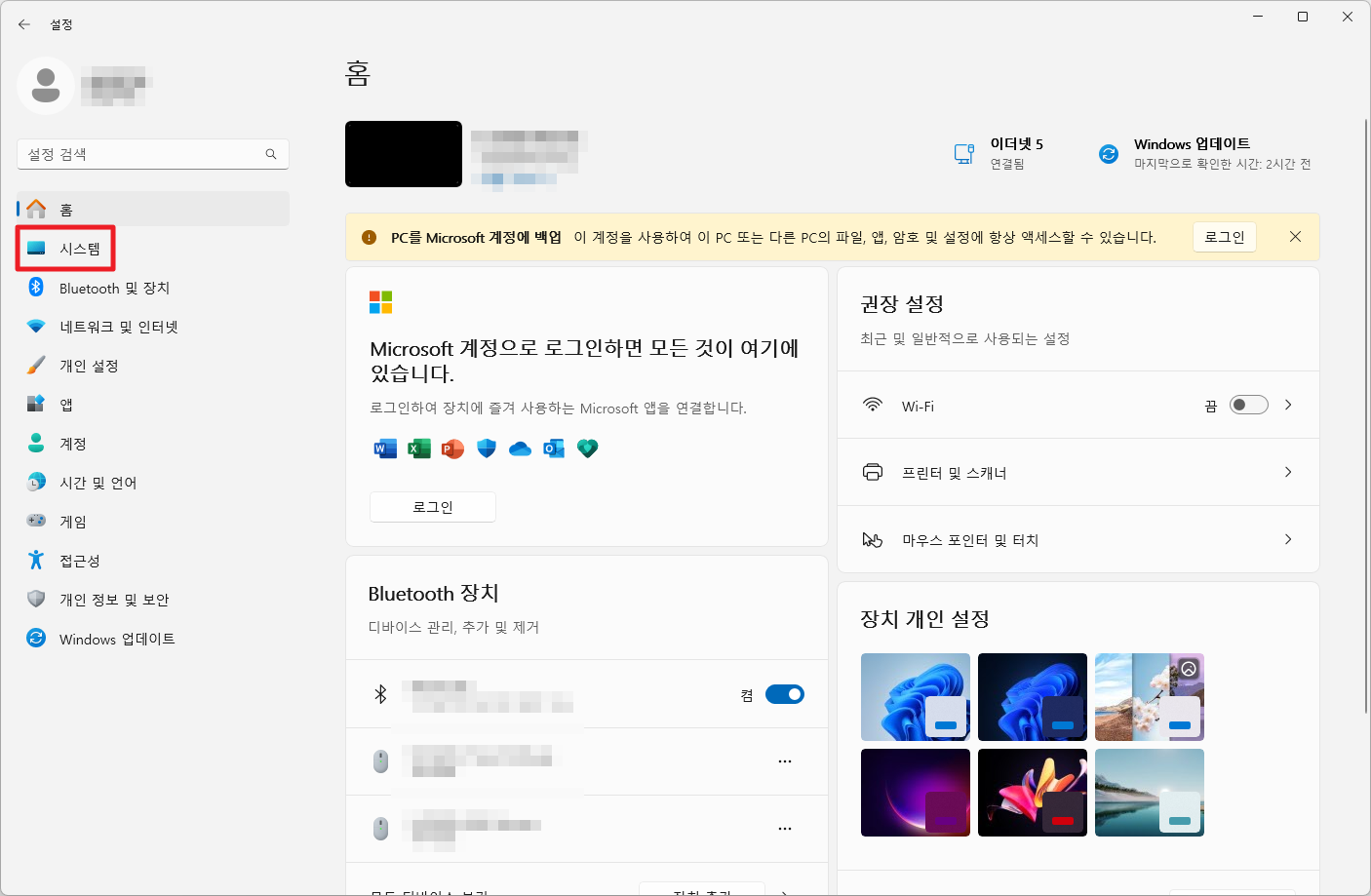
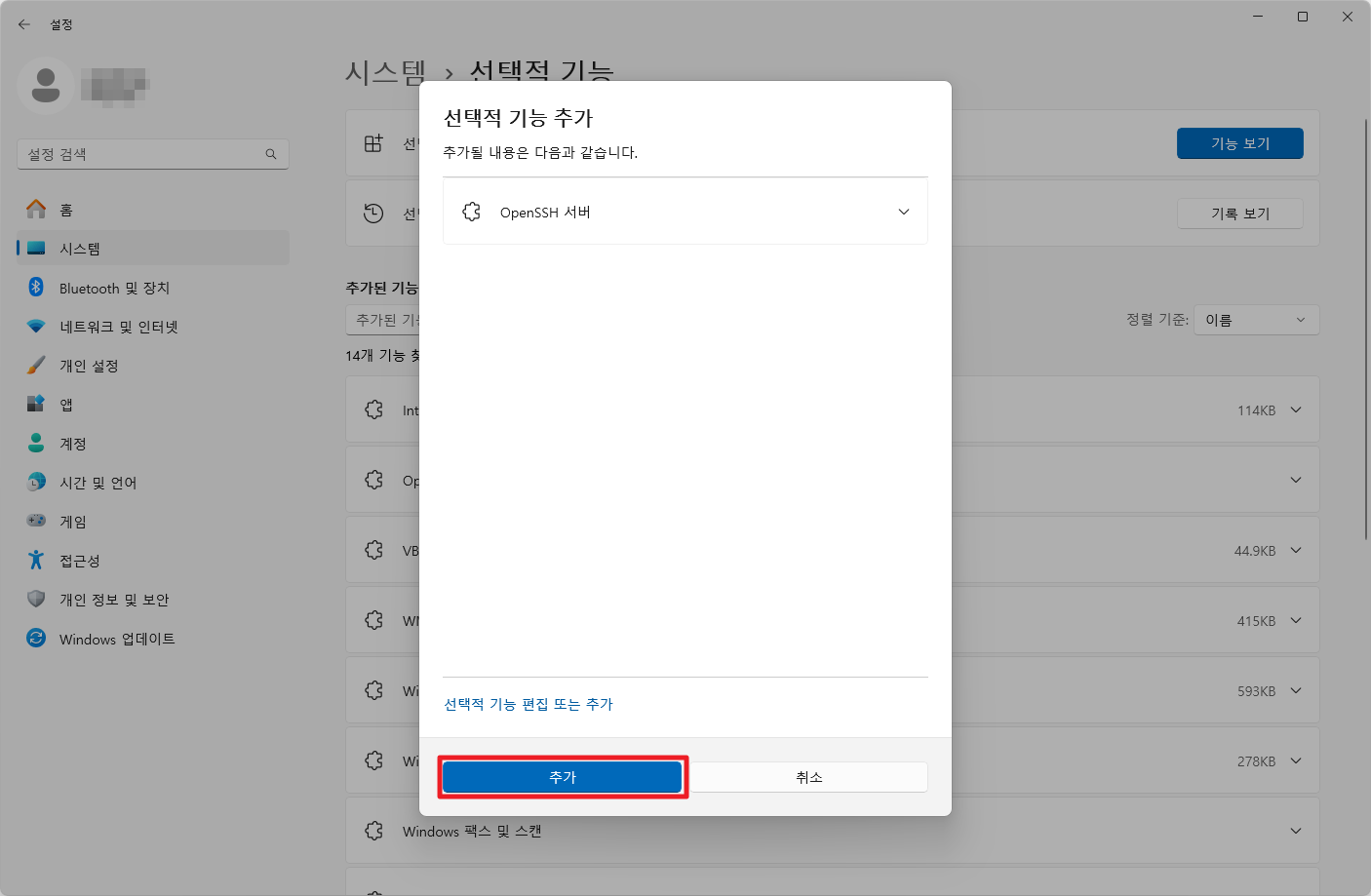
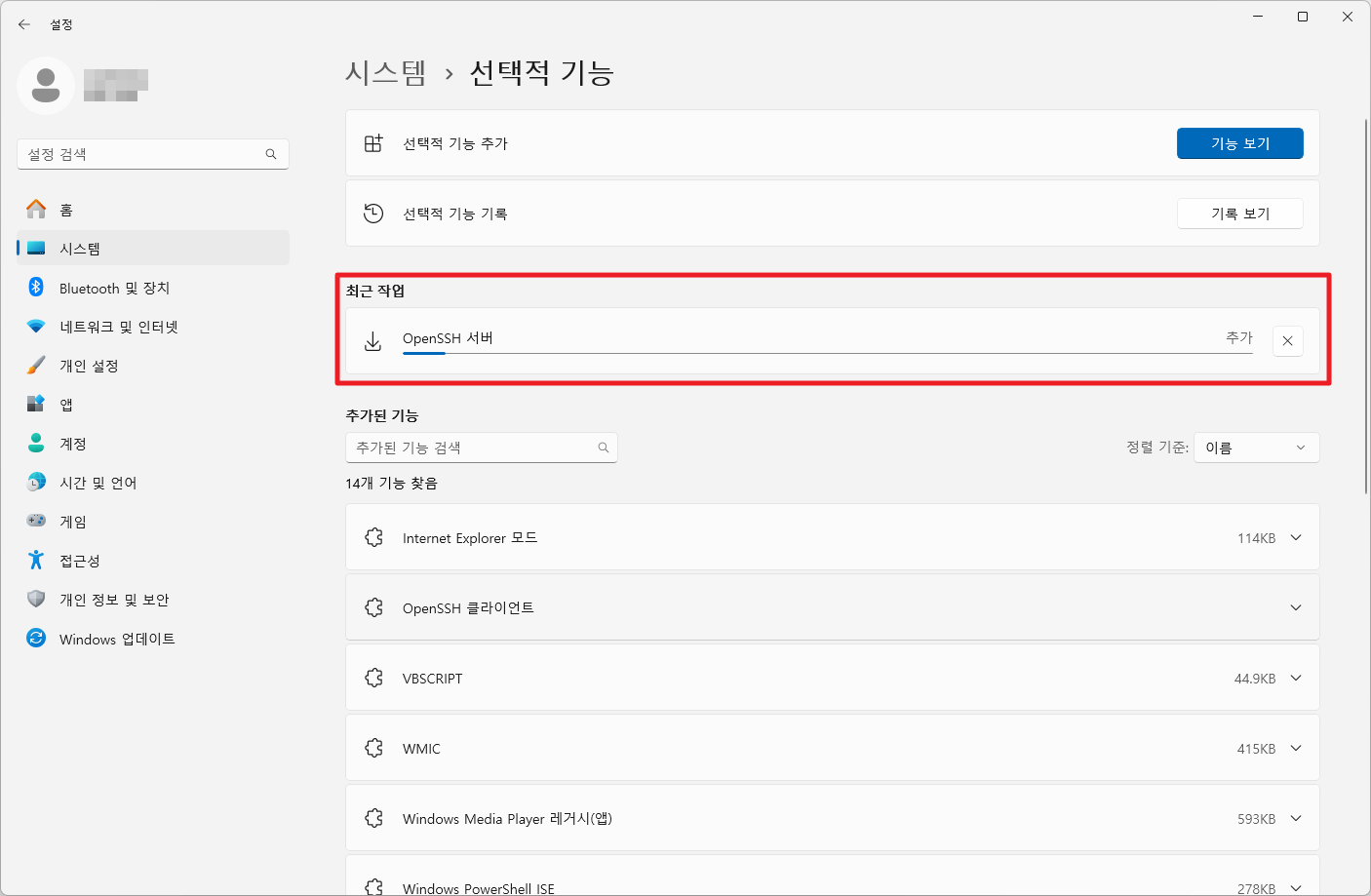
- Windows 11에서 OpenSSH 서버를 설치하는 가장 쉬운 방법은 설정 메뉴를 통하는 것입니다:
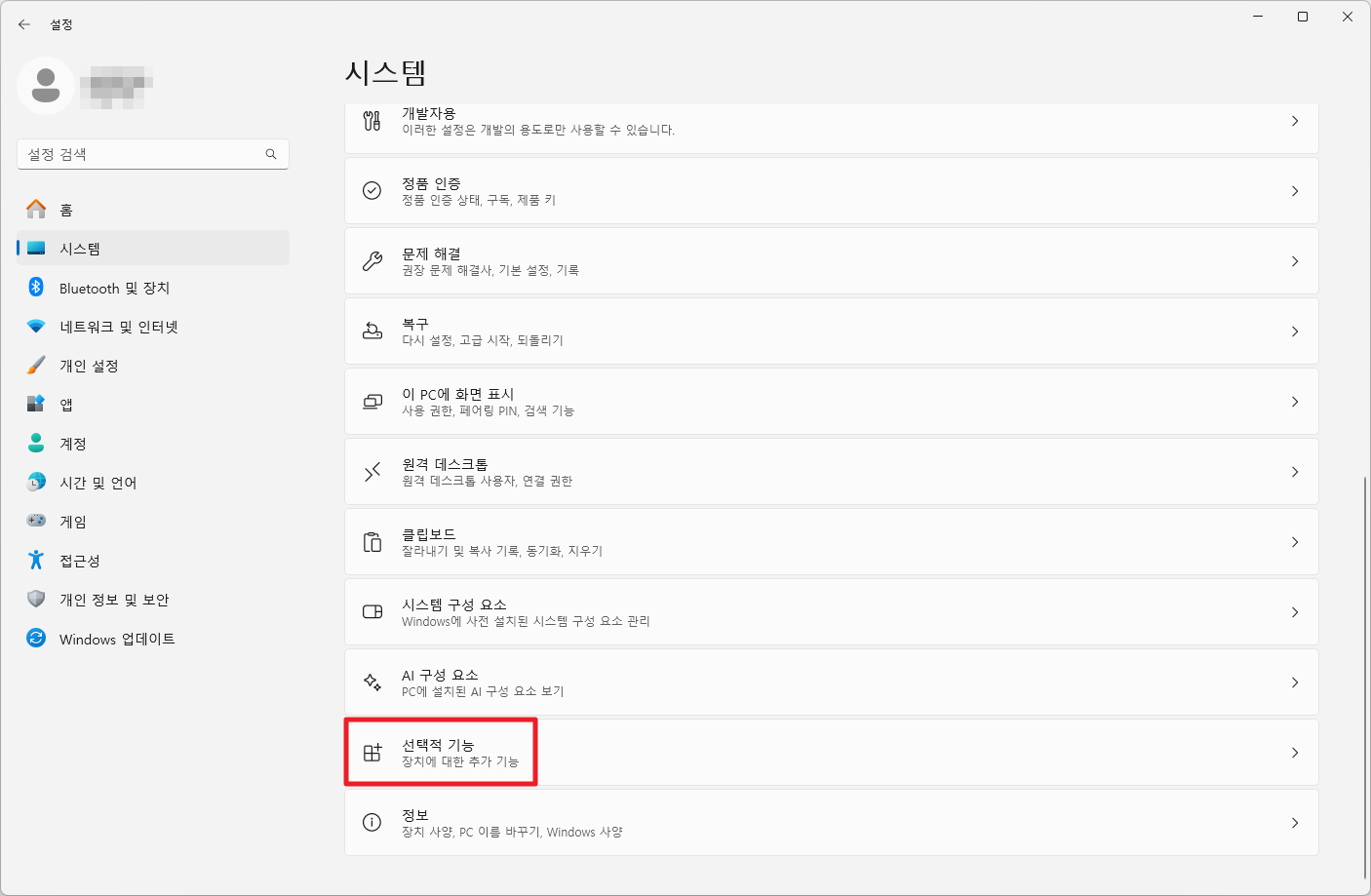
설정 > 시스템 > 선택적 기능으로 이동합니다
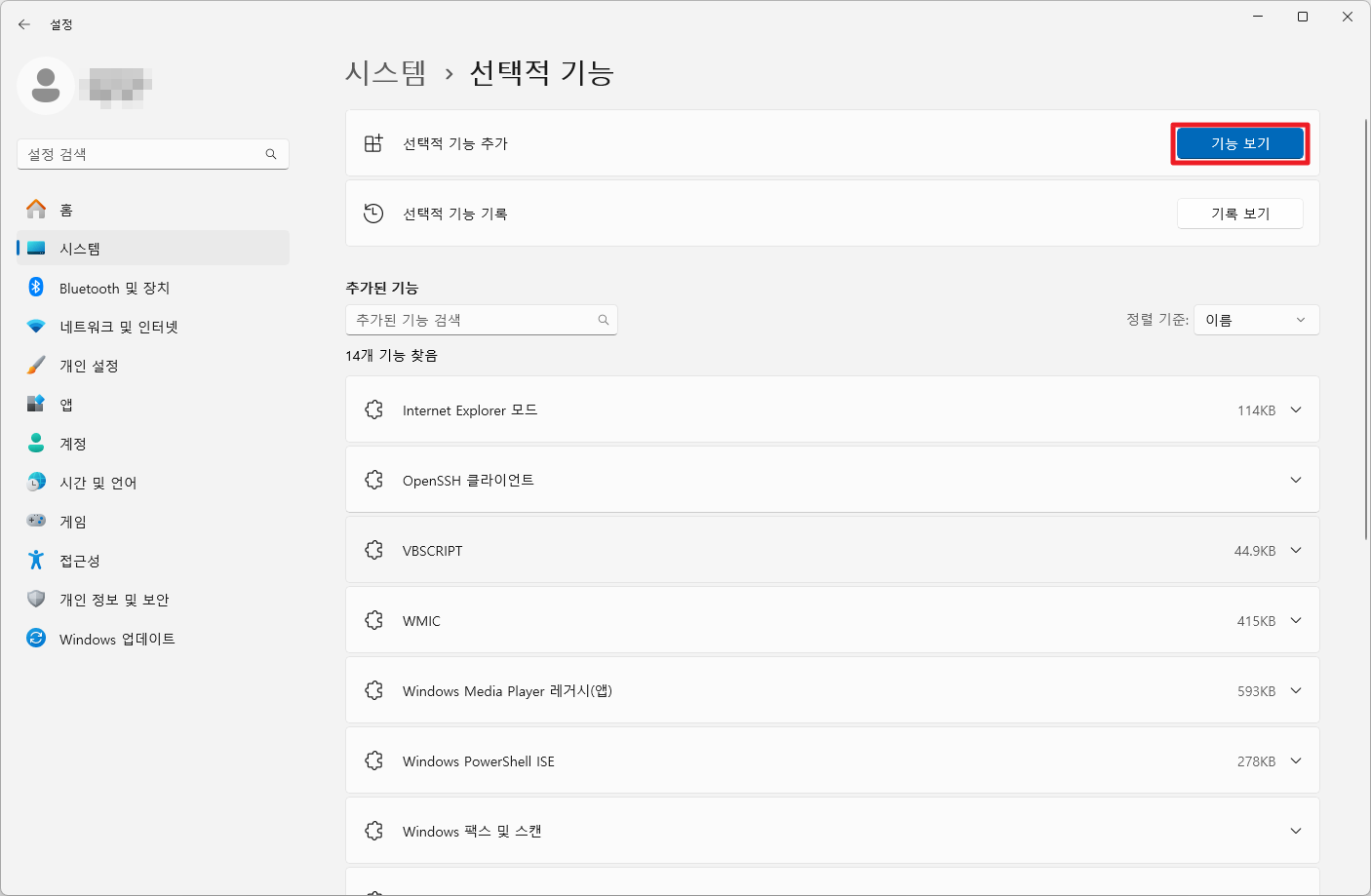
- "기능 보기"를 클릭합니다
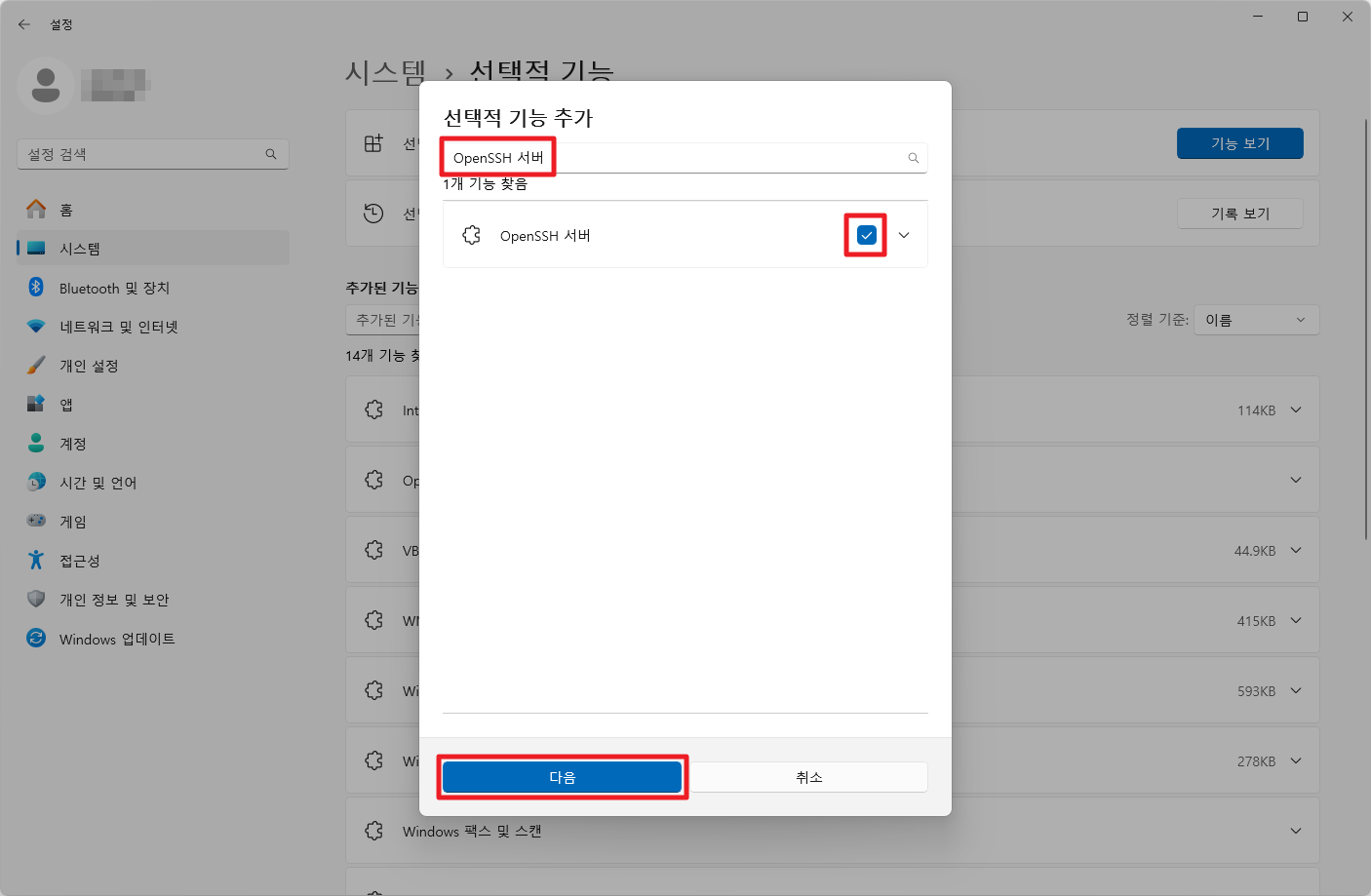
- "OpenSSH 서버"를 검색하고 선택합니다
- "다음" 버튼을 클릭한 후 "설치"를 선택합니다
1.2 PowerShell을 통한 설치
관리자 권한으로 PowerShell을 실행하고 다음 명령어를 사용할 수 있습니다:
| # OpenSSH 서버 설치 > Add-WindowsCapability -Online -Name OpenSSH.Server~~~~0.0.1.0 |
- 설치 확인을 위해 다음 명령어를 실행할 수 있습니다:
| > Get-WindowsCapability -Online | Where-Object Name -like 'OpenSSH*' |
2. OpenSSH 서비스 구성 및 시작
2.1 서비스 시작하기
- 설치가 완료되면 OpenSSH 서비스를 시작해야 합니다:
| # SSH 서비스 시작 > Start-Service sshd # 자동 시작 설정 (선택사항) > Set-Service -Name sshd -StartupType Automatic |
2.2 GUI를 통한 서비스 관리
- 시작 메뉴 > services.msc 검색 후 실행
- "OpenSSH SSH Server" 서비스를 찾습니다
- 서비스를 우클릭하여 "속성"을 선택합니다
- "시작 유형"을 "자동"으로 변경합니다
- "시작" 버튼을 클릭하여 서비스를 시작합니다
3. 방화벽 구성
OpenSSH 서버 설치 시 일반적으로 방화벽 규칙이 자동으로 생성됩니다. 하지만 확인이 필요합니다:
| # 방화벽 규칙 확인 if (!(Get-NetFirewallRule -Name "OpenSSH-Server-In-TCP" -ErrorAction SilentlyContinue | Select-Object Name, Enabled)) { Write-Output "Firewall Rule 'OpenSSH-Server-In-TCP' does not exist, creating it..." New-NetFirewallRule -Name 'OpenSSH-Server-In-TCP' -DisplayName 'OpenSSH Server (sshd)' -Enabled True -Direction Inbound -Protocol TCP -Action Allow -LocalPort 22 } else { Write-Output "Firewall rule 'OpenSSH-Server-In-TCP' has been created and exists." } |
4. 기본 SSH 연결 테스트
설치가 완료되면 로컬에서 SSH 연결을 테스트할 수 있습니다:
| > ssh localhost # 또는 > ssh username@127.0.0.1 |
원격 컴퓨터에서 연결하려면:
| > ssh username@server-ip-address |
5. OpenSSH 서버 구성 설정
5.1 구성 파일 위치
- OpenSSH 서버의 구성 파일은 C:\ProgramData\ssh\sshd_config에 위치합니다. 이 파일을 통해 다양한 설정을 변경할 수 있습니다.
5.2 포트 변경
- 기본 SSH 포트 22를 다른 포트로 변경하려면:
- 관리자 권한으로 C:\ProgramData\ssh\sshd_config 파일을 편집합니다
- #Port 22 줄을 찾아 주석을 제거하고 원하는 포트로 변경합니다:
| Port 2022 |
SSH 서비스를 재시작합니다:
| > Restart-Service -Force -Name sshd |
6. 공개키 인증 설정
6.1 SSH 키 생성
보안을 강화하기 위해 공개키 인증을 사용할 수 있습니다:
| # ED25519 키 생성 (권장) ssh-keygen -t ed25519 # RSA 키 생성 (호환성을 위해) ssh-keygen -t rsa -b 4096 |
6.2 공개키 배포
- 일반 사용자의 경우:\
> 공개키를 C:\Users\username\.ssh\authorized_keys 파일에 복사합니다
- 관리자 사용자의 경우:
> 공개키를 C:\ProgramData\ssh\administrators_authorized_keys 파일에 복사합니다
7. 보안 고려사항
7.1 비밀번호 인증 비활성화
- 공개키 인증을 설정한 후 비밀번호 인증을 비활성화할 수 있습니다:
| # sshd_config 파일에서 PubkeyAuthentication yes PasswordAuthentication no |
7.2 접근 제한
특정 사용자나 그룹만 SSH 접근을 허용하려면:
| AllowUsers username1 username2 AllowGroups sshusers |
8. 문제해결
8.1 서비스 시작 실패
- OpenSSH 서비스가 시작되지 않는 경우:
> 구성 파일 오류 확인:
| # 구성 파일 문법 검사 > sshd -t |
> 권한 재설정:
| > icacls "C:\ProgramData\ssh" /grant "NT SERVICE\SSHD:(OI)(CI)F" /T |
8.2 연결 거부 오류
- SSH 연결이 거부되는 경우:
- 방화벽 설정 확인
- 포트 번호 확인
- 사용자 자격 증명 확인
- SSH 서비스 상태 확인
9. 고급 설정
9.1 기본 셸 변경
- 기본 명령 셸을 PowerShell로 변경하려면:
| > New-ItemProperty -Path "HKLM:\SOFTWARE\OpenSSH" -Name DefaultShell -Value "C:\Windows\System32\WindowsPowerShell\v1.0\powershell.exe" -PropertyType String -Force |
9.2 로그 설정
- 디버깅을 위해 로그 레벨을 변경할 수 있습니다:
| # sshd_config 파일에서 LogLevel DEBUG |
◎ 결론
Windows 11에서 OpenSSH 서버를 설치하고 구성하는 것은 비교적 간단한 과정입니다. 적절한 보안 설정과 함께 사용하면 안전하고 효율적인 원격 관리 환경을 구축할 수 있습니다. 정기적인 업데이트와 보안 모범 사례를 따르는 것이 중요합니다.
'IT > Windows' 카테고리의 다른 글
| [Windows] WSL 2.7 출시: 더욱 강화된 Linux 환경을 경험하세요 (0) | 2025.12.12 |
|---|---|
| [Windows] 윈도우 11 시작 메뉴의 웹(Bing) 검색 기능 완전히 끄는 방법 (18) | 2025.08.04 |
| [Windows] WSL 2.6.0: 마이크로소프트의 최초 오픈소스 릴리즈 (3) | 2025.06.24 |
| [Windows] 외장하드디스크(USB HDD) 절전모드 해제 (0) | 2023.01.09 |
| [Windows] 윈도우 11 원격 데스크톱 (연결 설정 / 포트 변경 / 방화벽 설정 / 연결 방법) (2) | 2022.06.01 |