
◎ 자동화 스크립트
- 아래 내용을 Notepad에 붙여넣기하고 인코딩을 UTF-8 with BOM으로 변경하고 저장합니다.
| # [1. 관리자 권한 확인 및 인코딩] $OutputEncoding = [System.Text.Encoding]::UTF8 [Console]::OutputEncoding = [System.Text.Encoding]::UTF8 if (-not ([Security.Principal.WindowsPrincipal][Security.Principal.WindowsIdentity]::GetCurrent()).IsInRole([Security.Principal.WindowsBuiltInRole]::Administrator)) { Write-Host "`n[권한] 관리자 권한으로 실행 중입니다..." -ForegroundColor Yellow try { Start-Process powershell.exe "-NoProfile -ExecutionPolicy Bypass -File `"$PSCommandPath`"" -Verb RunAs } catch { Write-Host "`n[오류] 관리자 권한 승인이 필요합니다." -ForegroundColor Red Read-Host "엔터를 누르면 종료합니다." } exit } # --- 시스템 정보 분석 (빌드 번호 기반 윈도우 11 구분) --- $registryPath = "HKLM:\SOFTWARE\Microsoft\Windows NT\CurrentVersion" $verInfo = Get-ItemProperty $registryPath $osName = $verInfo.ProductName $editionId = $verInfo.EditionID $buildNumber = [int]$verInfo.CurrentBuild # 빌드 번호가 22000 이상이면 Windows 11로 정정 if ($buildNumber -ge 22000) { $osName = $osName -replace "Windows 10", "Windows 11" } $isHome = ($osName -match "Home" -or $editionId -match "Core") $packagePath = "$env:SystemRoot\servicing\Packages" # [함수: Hyper-V 제어 로직] function Set-HyperV { param([string]$Action) switch ($Action) { "EnableAndOn" { # [활성화 + 켜기] Home 에디션 타겟 Write-Host "`n[작업] Hyper-V 활성화 및 켜기를 시작합니다..." -ForegroundColor Cyan if ($isHome) { Write-Host "[1/2] 패키지 활성화(목록 노출) 중..." -ForegroundColor Yellow Get-ChildItem -Path $packagePath -Filter "*Hyper-V*.mum" -Name | ForEach-Object { dism /online /norestart /add-package:"$packagePath\$_" | Out-Null } } Write-Host "[2/2] 기능 켜기 및 하이퍼바이저 부팅 설정 중..." -ForegroundColor Yellow dism /online /enable-feature /featurename:Microsoft-Hyper-V /All /LimitAccess bcdedit /set hypervisorlaunchtype auto | Out-Null Write-Host "[완료] 활성화 및 켜기 작업이 완료되었습니다." -ForegroundColor Green } "DisableAndOff" { # [비활성화 + 끄기] Home 에디션 타겟 Write-Host "`n[작업] Hyper-V 끄기 및 비활성화를 시작합니다..." -ForegroundColor Red Write-Host "[1/2] 기능 끄기 및 하이퍼바이저 부팅 차단 중..." -ForegroundColor Yellow dism /online /disable-feature /featurename:Microsoft-Hyper-V /norestart bcdedit /set hypervisorlaunchtype off | Out-Null if ($isHome) { Write-Host "[2/2] 패키지 비활성화(목록 제거) 중..." -ForegroundColor Yellow Get-ChildItem -Path $packagePath -Filter "*Hyper-V*.mum" -Name | ForEach-Object { dism /online /norestart /remove-package /packagepath:"$packagePath\$_" | Out-Null } } Write-Host "[완료] 끄기 및 비활성화 작업이 완료되었습니다." -ForegroundColor Green } "On" { # [켜기] Pro/Ent 및 이미 활성화된 Home용 Write-Host "`n[작업] Hyper-V 기능을 켭니다 (On)..." -ForegroundColor Green dism /online /enable-feature /featurename:Microsoft-Hyper-V /All /LimitAccess bcdedit /set hypervisorlaunchtype auto | Out-Null Write-Host "[완료] 기능을 켰습니다." -ForegroundColor Green } "Off" { # [끄기] Pro/Ent 및 이미 활성화된 Home용 Write-Host "`n[작업] Hyper-V 기능을 끕니다 (Off)..." -ForegroundColor Yellow dism /online /disable-feature /featurename:Microsoft-Hyper-V /norestart bcdedit /set hypervisorlaunchtype off | Out-Null Write-Host "[완료] 기능을 껐습니다." -ForegroundColor Green } } Write-Host "`n-------------------------------------------------" Write-Host " 작업 완료. 변경 사항 적용을 위해 반드시 재부팅이 필요합니다." -ForegroundColor Cyan $confirm = Read-Host " 지금 재부팅하시습니까? (Y/N)" if ($confirm -match "y") { Restart-Computer } } # [메인 메뉴 루프] while ($true) { Clear-Host Write-Host "=================================================" -ForegroundColor White Write-Host " Windows Hyper-V 통합 관리 도구 " -ForegroundColor Cyan Write-Host "=================================================" Write-Host " [OS 정보] $osName ($editionId)" -ForegroundColor Yellow Write-Host " [빌드번호] $buildNumber" -ForegroundColor Gray Write-Host "-------------------------------------------------" if ($isHome) { Write-Host " <Home 에디션 메뉴>" -ForegroundColor Gray Write-Host " 1. [활성화+켜기] Hyper-V 목록 노출 및 즉시 사용" -ForegroundColor Green Write-Host " 2. [비활성화+끄기] Hyper-V 사용 중지 및 목록 제거" -ForegroundColor Red } else { Write-Host " <Pro/Enterprise 에디션 메뉴>" -ForegroundColor Gray Write-Host " 1. [켜기] Hyper-V 기능 사용 시작" -ForegroundColor Green Write-Host " 2. [끄기] Hyper-V 기능 사용 중지" -ForegroundColor Yellow } Write-Host " <공통 관리 메뉴>" -ForegroundColor Gray Write-Host " 3. [재부팅] 시스템 즉시 재부팅" Write-Host " 0. 종료" Write-Host "=================================================" $sel = Read-Host "선택" switch ($sel) { "1" { if ($isHome) { Set-HyperV -Action "EnableAndOn" } else { Set-HyperV -Action "On" } } "2" { if ($isHome) { Set-HyperV -Action "DisableAndOff" } else { Set-HyperV -Action "Off" } } "3" { Restart-Computer } "0" { exit } } } |
- powershell을 실행하고 파일이 만들어진 폴더로 이동하고 아래 명령어를 실행합니다.
| PS C:\Users\Users\Downloads> powershell -ExecutionPolicy Bypass -File .\Enable_Home_Tools.ps1 |
Hyper-V는 Microsoft의 가상화 플랫폼입니다. Windows Server 운영 체제에서 사용할 수 있었지만 Microsoft는 Windows 10와 Windows 11에 Hyper-V 기능을 추가했습니다.
안타깝게도 Hyper-V 기능은 Windows 11 Professional 및 Enterprise 버전에서만 사용할 수 있습니다.
기본적으로 Windows 11 Home Edition에는 설치할 수 없습니다.
그러나 이 문서의 단계를 사용하여 Windows 11 Home Edition에서 Hyper-V를 사용하도록 설정하겠습니다.
> 시스템이 가상화를 지원하는지 여부 확인
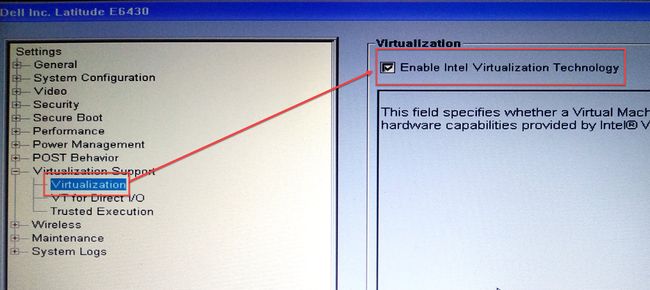
계속 진행하기 전에 시스템이 가상화를 지원하는지 확인해야 합니다.
Hyper-V가 올바르게 작동하려면 하드웨어 가상화가 필요합니다.
만약 지원하지 않다면 Virtualbox 및 VMWare와 같은 다른 가상화 플랫폼을 사용해야 합니다.
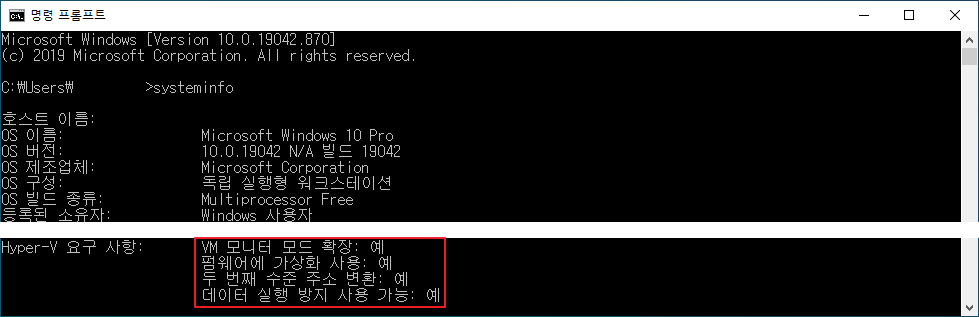
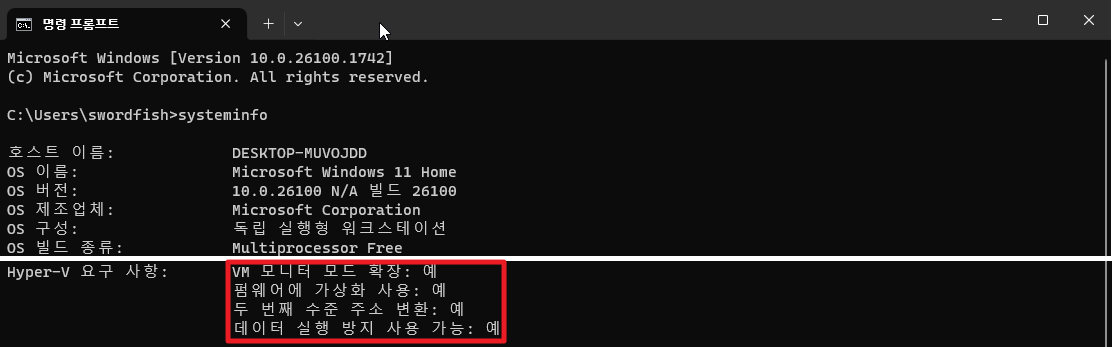
Windows 11 컴퓨터에 Hyper-V를 설치하기 위한 네 가지 기본 요구 사항이 있습니다.
- VM 모니터 모드 확장
- 펌웨어에 가상화 사용
- 두 번째 수준 주소 변환
- 데이터 실행 방지 사용 가능
명령 프롬프트 ( 실행(WinKEY+R) –> cmd )를 열고 systeminfo 명령을 실행하여 Hyper-V 요구 사항 섹션을 확인할 수 있습니다.
> Windows 11 Home에서 Hyper-V 활성화 Windows 11 Home에서 Hyper-V를 설치하고 활성화하려면 아래 단계를 따라서 진행하면 됩니다.
- 텍스트 편집기를 사용하여 install-hyper.bat 와 같이 파일을 만들고 다음을 해당 파일에 복사하고 저장하세요.
| pushd "%~dp0" dir /b %SystemRoot%\servicing\Packages\*Hyper-V*.mum > hyper-v.txt for /f %%i in ('findstr /i . hyper-v.txt 2^>nul') do dism /online /norestart /add-package:"%SystemRoot%\servicing\Packages\%%i" del hyper-v.txt Dism /online /enable-feature /featurename:Microsoft-Hyper-V -All /LimitAccess /ALL pause |
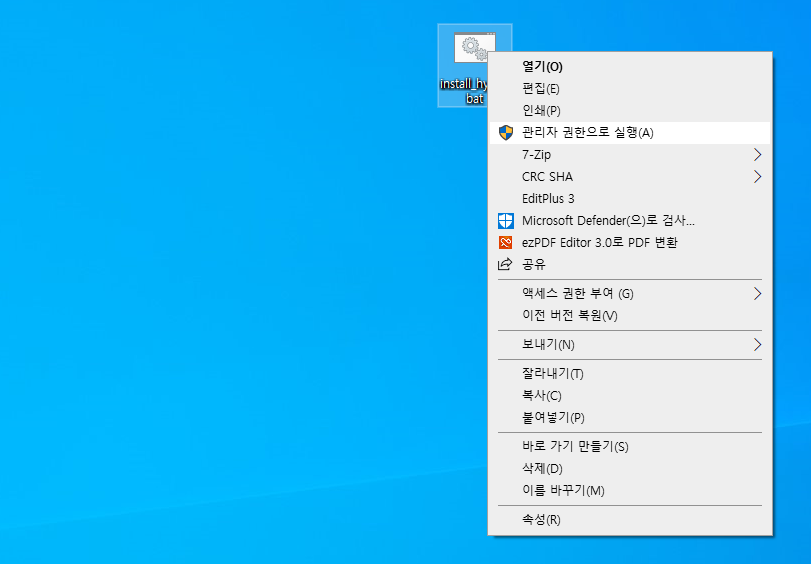
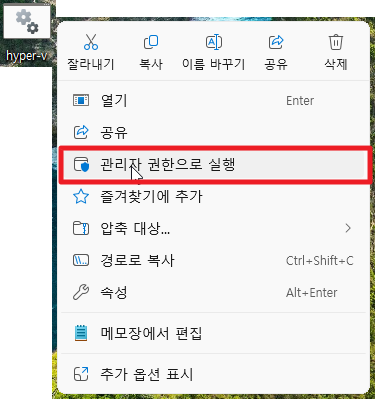
- 해당 파일을 마우스 오른쪽 버튼으로 클릭하고 관리자 권한으로 실행을 선택합니다. 그러면 설치 스크립트가 실행됩니다. 설치를 완료하는 데 다소 시간이 걸릴 수 있습니다. 완료 전에 종료하지 말고 기다려주세요.
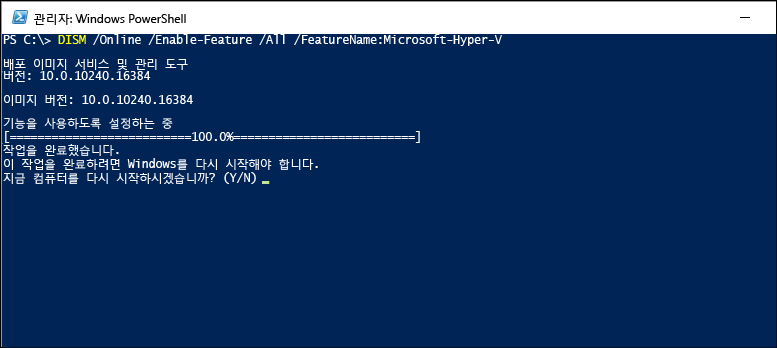
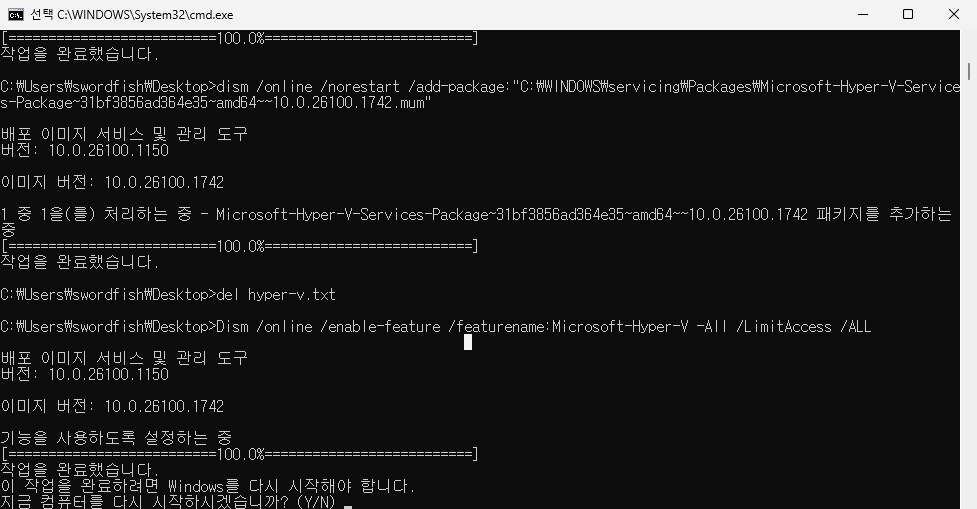
- Y를 눌러 계속합니다. 완료되면 시스템이 다시 시작됩니다.
- 다시 시작하면 Windows 업데이트 화면이 표시됩니다.
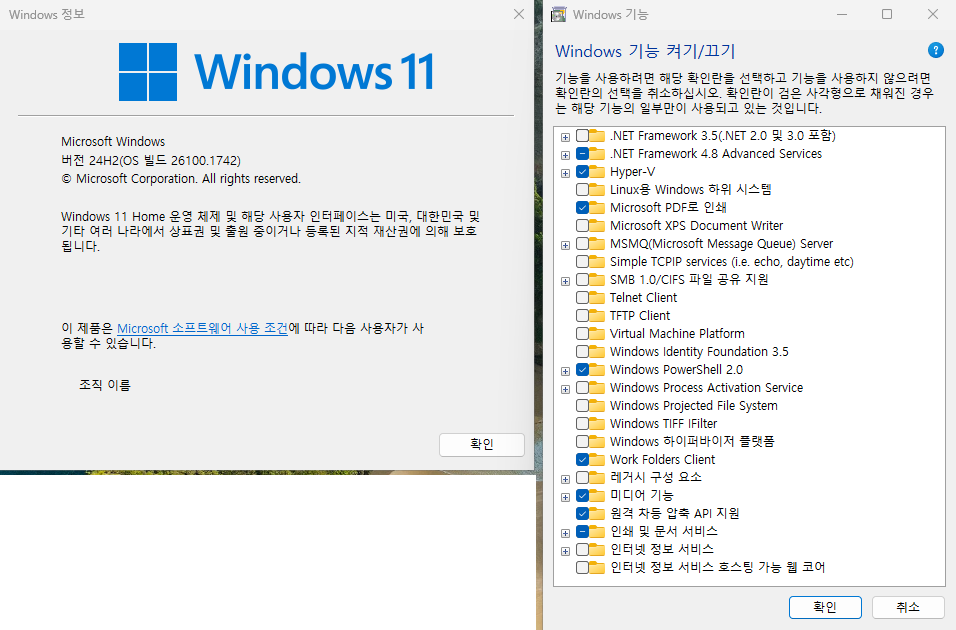
- 다시 시작한 후 Windows 선택적 기능에 Hyper-V 옵션이 표시되는지 확인할 수 있습니다.
- 확인하려면 실행(WinKEY+R) – optionalfeatures를 실행하면 됩니다. Hyper-V 및 Hyper-V 관리 도구를 찾을 수 있습니다.
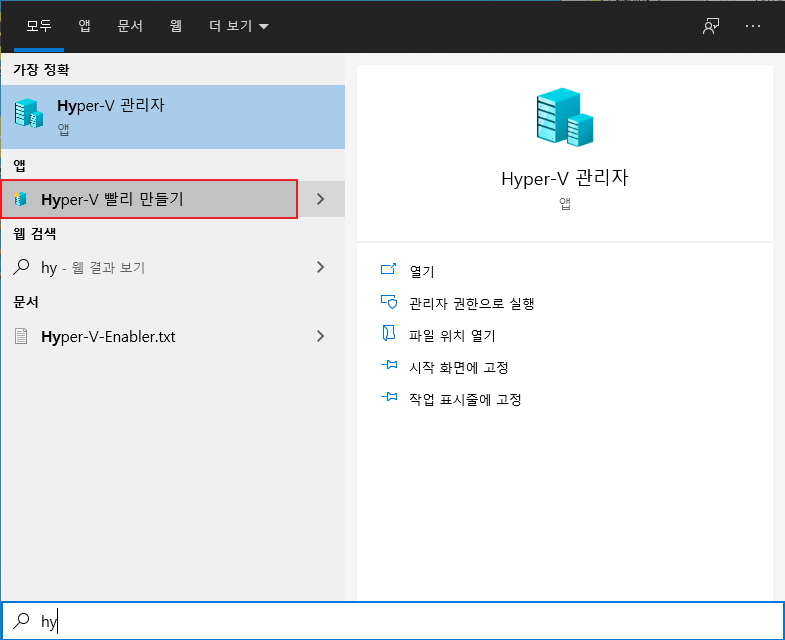
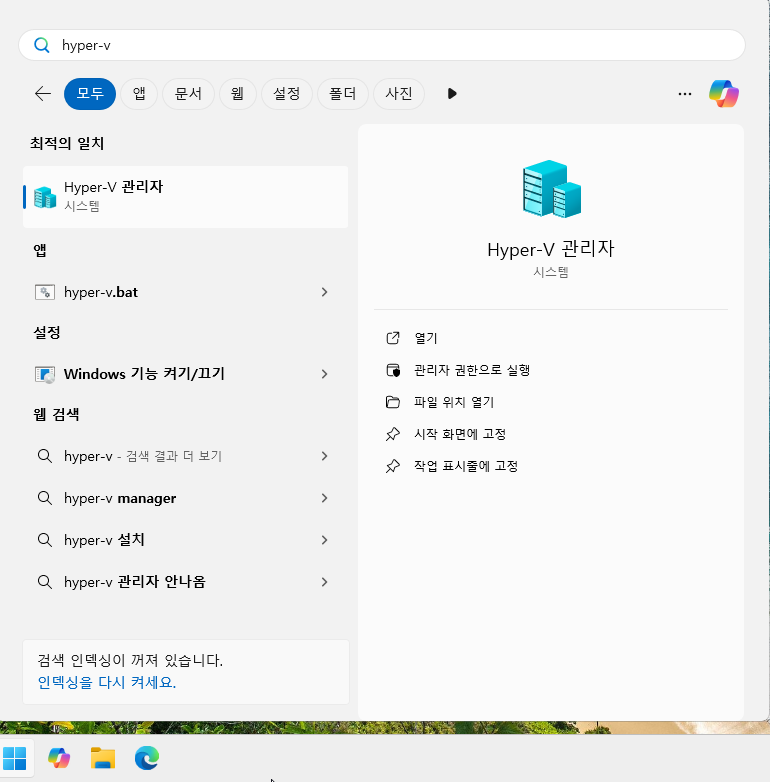
- 시작 메뉴에서 Hyper-V를 검색하여 Windows 11 Home 컴퓨터에서 가상 머신 생성을 시작할 수 있습니다.
> 시작 메뉴에서 hyper를 검색합니다.
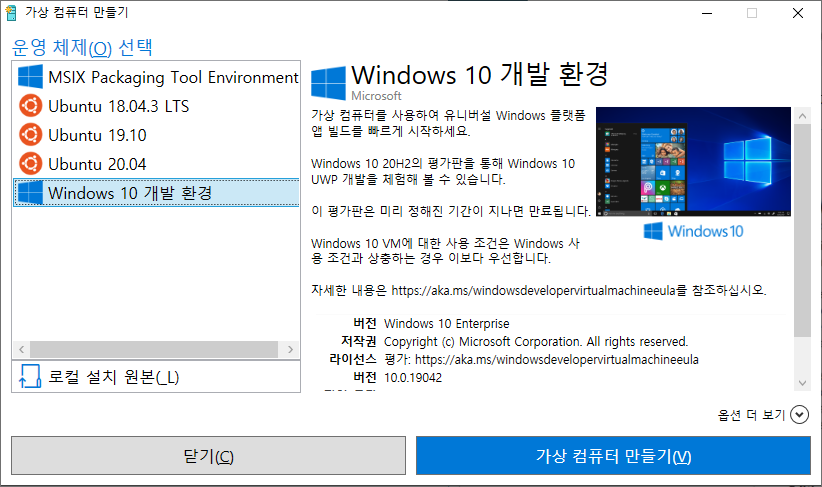
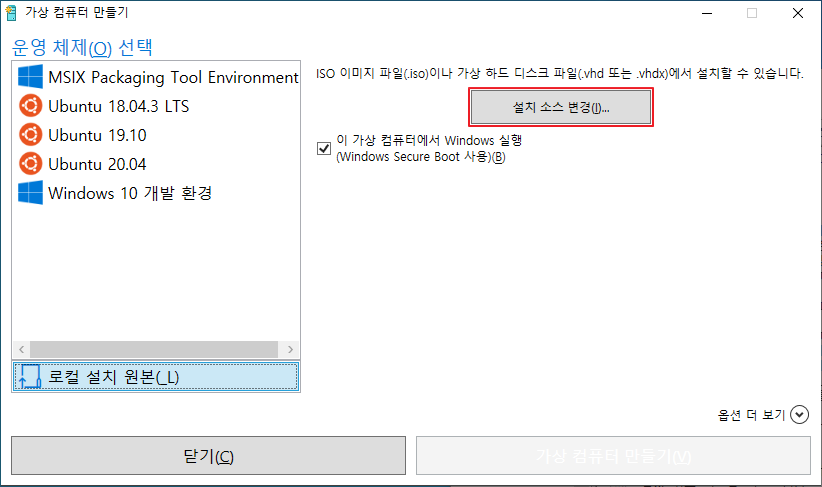
- Hyper-V가 컴퓨터 내에 설치되었으며, 이제 Hyper-V를 이용하여 가상 머신을 만들 수 있었습니다.
> Windows 11 Home에서 Hyper-V 비활성화
컴퓨터에서 이 기능을 원하지 않는 경우 언제든지 비활성화할 수 있습니다. 비활성화하는 방법에는 두 가지가 있습니다.
- 첫번째 방법
. 실행(WinKEY+R) –> optionalfeatures로 실행하면 선택적 기능 창이 열립니다.
. Hyper-V 및 Hyper-V 관리 도구 선택을 취소합니다..
. 컴퓨터 재시작
- 두 번째 방법
. 명령 줄을 사용하여 이 작업을 수행할 수도 있습니다.
| PS C:\> Disable-WindowsOptionalFeature -Online -FeatureName Microsoft-Hyper-V -All 또는 C:\> DISM /Online /Disable-Feature /All /FeatureName:Microsoft-Hyper-V |
Hyper-V는 개인 사용자에게도 매우 유용합니다.
- 새 소프트웨어 테스트 및 평가
호스트 시스템을 손상시키지 않고 새 소프트웨어를 테스트하고 평가하는 데 사용할 수 있고,
- 은행/증권 등 금융 사이트, 국가기관 민원업무 사이트 등
은행 사이트나 정부 사이트 접속 시 강제설치 프로그램을 가상 머신 내 설치하여 접속할 수도 있습니다.
'VIRTUALIZATION > Hyper-V' 카테고리의 다른 글
| Hyper-V에서 고정 IP 사용 방법 (0) | 2023.07.24 |
|---|---|
| WSL2 서비스 포트포워딩(portproxy) 배치파일(batch) (0) | 2023.03.25 |
| WSL2에서 칼리 리눅스(Kali Linux) xrdp 원격접속 (0) | 2023.03.22 |
| [Windows] 윈도우 11 Hyper-V에 설치하기 (29) | 2021.10.10 |
| [Hyper-V] 윈도우 10에 Linux용 Windows 하위 시스템(WSL) 설치 (0) | 2021.03.24 |